Installing Scratch and First Project: Character Moves and Speaks

Your first hands-on Scratch project: a character that moves and speaks – step by step. Beginner-friendly guide with screenshots and tips.
2- Your First Project: Character Moves and Speaks
Welcome back to our robotics programming series. In the previous article we introduced the concept of programming and why Scratch is an ideal starting point. Today we move to hands-on: accessing Scratch and building your very first simple project.
How to Access Scratch? (No complicated installation needed)
Scratch primarily runs in the browser, making it accessible to everyone. The two main ways:
- Online (recommended for starters): Go to https://scratch.mit.edu/ then click the Create button.
- Offline version (optional): From the same page, click “Scratch Desktop” at the bottom to download the free app for computer (Windows / macOS / Linux).
We recommend starting in the browser to get familiar with the interface.

Quick Review of the Interface
When you enter the Scratch editor:
| Part | Function |
|---|---|
| Stage | The large background where action happens |
| Sprite List | The objects/characters (like the default cat) |
| Blocks Palette | Colored blocks grouped in categories (Motion, Looks, Sound, Events…) |
| Scripting Area | Where you stack and arrange blocks to build the program |
First Project: “Hello Moving”
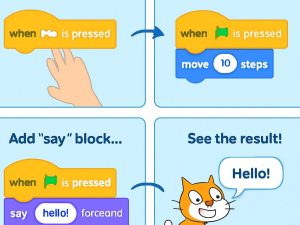
Goal: Make the default sprite (the cat) move forward a bit and say “Hello!” for two seconds when the green flag is clicked.
Step-by-step instructions:
- Open Scratch now if you haven’t already.
- In the blocks palette, click the Events category.
- Drag the When green flag clicked block to the scripting area.
- Go to Motion category and drag move 10 steps and attach it below the previous block.
- Go to Looks category and drag say … for … seconds.
- Type Hello! inside the speech bubble and set seconds to 2.
- Attach this block below the previous ones.
- Click the green flag at the top of the stage to run the program.
If everything works, you will see the cat move slightly and say “Hello!”.
Tips for Better Experimentation
- Change numbers: Try “move 30 steps” or “-20 steps” (to move backward).
- Add another block: From Motion → point in direction 90 before moving to face right.
- Save your project: Click “File” → “Save now” or create a free account to save online.
“Mistakes are a normal part of learning. If something doesn’t work, try detaching blocks and re-attaching them or clicking the flag again.”
Congratulations! You have completed your first Scratch program.
In the next article we will go deeper: adding repeated movements, changing sprite appearance, and using repeat loops for smoother motion.
** Watch the tutorial video below..
Watch a short educational video that explains the lesson in action
Tip: If you’d like Arabic subtitles (ترجمة عربية), click the CC button at the bottom right of the video. Then click the gear icon ⚙️ → Subtitles/CC → Auto-translate → select Arabic. This works on most videos with auto-generated captions.