Movement, Appearance, and Repeat Loops in Scratch

Learn repeat loops (repeat, forever) and costume changes in Scratch. Hands-on project: animated walking sprite back and forth with screenshots and examples.
3- Continuous movement in Scratch
Welcome back to the series. In the previous article we created a simple project: a character that moves once and says hello. Today we build on that to make movement continuous and more lively using repeat loops and costume changes.
Understanding Repeat Loops
Loops allow repeating a group of blocks multiple times without manual copying. In the Control category we find three main types:
| Loop Type | When to Use | Simple Example |
|---|---|---|
| repeat … times | When you know the exact number of repetitions | repeat 4 (to draw a square) |
| forever | Continuous action that never stops (like a cycle) | Background scrolling or endless walking |
| repeat until … | Repeat until a condition is true | repeat until touching edge |
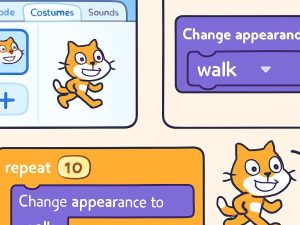
Today’s Project: Character Walking Back and Forth with Costume Change
Goal: Make the cat (or any sprite) move left and right continuously, changing costumes to look like it’s walking.
Step-by-step instructions:
- Open your previous project or start a new one in the Scratch editor.
- Ensure the interface language is set as desired (globe icon bottom left).
- Add extra costumes: Go to “Costumes” tab top right → “Choose a Costume” → search for “walk” or “run” or add 2-3 walking poses (e.g., leg up / leg down).
- In the scripting area, start with when green flag clicked.
- Add a forever block (from Control).
- Inside the forever loop:
- From Motion: move 5 steps
- From Looks: next costume (or “switch costume to” specific like “walk1” then “walk2”)
- From Control: wait 0.2 seconds (to slow down the animation)
- From Motion: if on edge, bounce (to reverse direction at edges)
Click the green flag: the sprite will walk back and forth, automatically changing costumes.
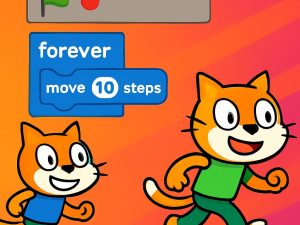
Extra Experiments to Build Skills
- Change speed: Try “move 10 steps” or use a variable for speed.
- Use “repeat 10” instead of forever for limited steps.
- Add sound: From Sound → “play sound footsteps” inside the loop.
- Try “repeat until”: repeat until to stop near mouse.
“Loops make your program shorter and easier to edit. Always experiment by changing numbers and conditions to see the difference.”
You have now mastered the basics of continuous movement and simple animation.
In the next article we will build a real simple game: apple catching or obstacle avoidance, adding interaction and scoring.
→ Read Article 4: Building a Simple Game – Apple Catching or Obstacle Avoidance
** Watch the tutorial video below..
Watch a short educational video that explains the lesson in action
Tip: If you’d like Arabic subtitles (ترجمة عربية), click the CC button at the bottom right of the video. Then click the gear icon ⚙️ → Subtitles/CC → Auto-translate → select Arabic. This works on most videos with auto-generated captions.