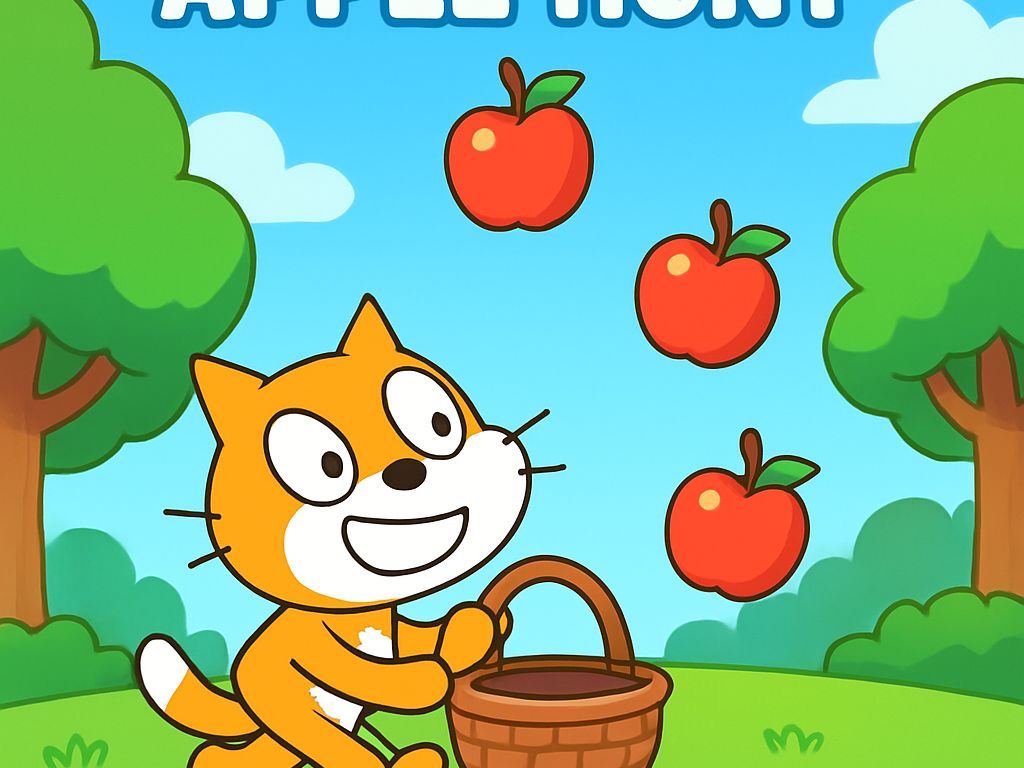
Building a Simple Game in Scratch: Apple Catching

Build an Apple Catching game in Scratch: basket movement, falling apple, collision, scoring. Step-by-step English guide with screenshots.
4- Apple hunting game
Welcome back to the series. In the previous article we learned repeat loops and costume changes to make a character walk. Today we combine what we’ve learned to build a real game: Apple Catching. Goal: Move a basket (or plate) left and right to catch falling apples and collect points.
Key Concepts in the Game
| Concept | Blocks Used | Purpose |
|---|---|---|
| Player Movement | key right arrow pressed / left arrow pressed | Move the basket |
| Random Falling | go to x: pick random -240 to 240, y: 180 | Apple appears at top randomly |
| Collision Detection | if touching [basket] | Catch apple and add points |
| Score Management | variable score + change score by 1 | Display and update result |
Today’s Project: Apple Catching Game
Goal: Catch as many falling apples as possible before they hit the ground (you can add lives later).
Step-by-step instructions:
- Open the Scratch editor and start a new project.
- Choose two sprites:
- The basket (Bowl or Plate from library) – name it “Basket”
- The apple (Apple) – name it “Apple”
- For the “Basket” (left/right movement):
- When green flag clicked → forever
- If key right arrow pressed → change x by 5
- If key left arrow pressed → change x by -5
- For the “Apple” (falling and collision):
- When green flag clicked → create variable “Score” for all sprites
- Forever:
- Go to x: pick random -240 to 240, y: 180
- Show
- Repeat until y < -150 or touching [Basket]
- Move 5 steps (or more for faster fall)
- If touching [Basket] → change Score by 1 + hide + play sound (optional)
- Else (if reaches bottom) → hide (or add miss/life loss later)
- Show the “Score” variable on stage (from Variables category).
Click the green flag: Apples fall randomly – move the basket to catch them and increase your score!
Extra Experiments to Improve the Game
- Increase speed gradually: Add a “speed” variable and increase it every 10 points.
- Add lives: Variable “Lives” = 3, if apple reaches bottom without catch → change Lives by -1, if 0 → stop game.
- Add sound on catch: From Sound → play sound “pop”.
- Change background or add multiple apples (use “clone” for the apple sprite).
“Start simple, then add improvements one by one. That’s the secret to building good games.”
Congratulations! You’ve built your first complete game in Scratch.
In the next article we will improve the game further: adding levels, better scoring, sounds, and perhaps a “Game Over” screen.
→ Read Article 5: Adding Levels, Scores, and Sounds
Watch a short educational video that explains the lesson in action
Tip: If you’d like Arabic subtitles (ترجمة عربية), click the CC button at the bottom right of the video.
Then click the gear icon ⚙️ → Subtitles/CC → Auto-translate → select Arabic.
This works on most videos with auto-generated captions.
(Short video focused on the core steps of a falling object catcher game – matches our lesson perfectly)