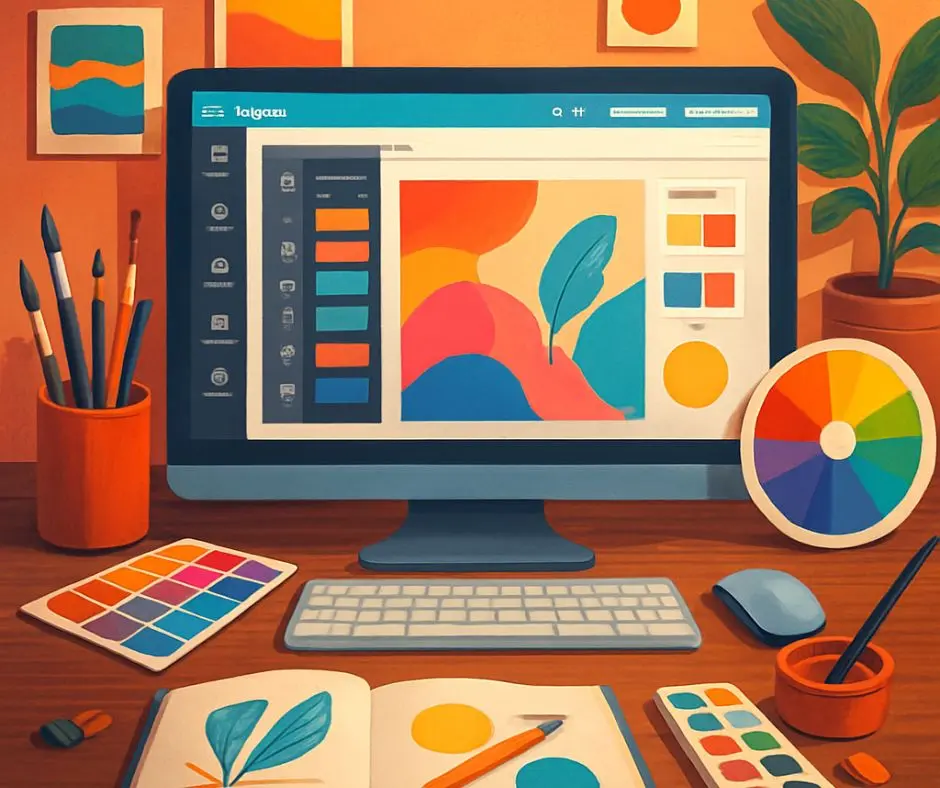
What Is Canva? And Why It’s No Longer Just a Design Tool
Discover what Canva is and how Magic Studio changed the platform — a full comparison of Free vs Pro plans, a table of every AI tool available, and ready-to-use prompts to try immediately.
Ten years ago, if you asked a professional designer to recommend a design tool for non-designers, the honest answer was usually: there isn’t one. Design required software fluency, hours of practice, and a tolerance for steep learning curves. Then Canva arrived and quietly rewrote those rules.
Today, Canva is no longer just an easy design tool. It has evolved into a full creative platform powered by AI — one that writes, designs, edits photos, and generates video, all in a single workspace. This series walks you through everything, from your first login to advanced workflows.
The Story Behind the Platform
Canva was founded in 2013 in Perth, Australia by Melanie Perkins, Cliff Obrecht, and Cameron Adams. The founding idea was straightforward: make professional design accessible to people without a design background. A generous free tier attracted millions of users early on; a premium subscription built a sustainable business on top of it.
A decade later, Canva serves over 150 million users worldwide. At its tenth anniversary, the company announced its largest product launch to date: Magic Studio — a suite of AI tools built directly into the heart of the platform.
Magic Studio wasn’t a side feature. It was a redefinition of what Canva does.
What Is Magic Studio?
Magic Studio is not a single tool — it’s a collection of over 20 AI-powered features embedded inside the Canva interface you already know. The core idea: you shouldn’t have to switch between ChatGPT for copy, a separate image generator for visuals, and another tool for video. Everything lives in one place.
The table below covers the key Magic Studio tools and what each one actually does:
| Tool | What It Does | Free? | Pro? |
|---|---|---|---|
| Magic Write | AI writing assistant inside any text box — captions, headlines, product descriptions, outlines | ✅ Limited | ✅ Full |
| Magic Design | Generates a complete design (presentation, post, video) from a text prompt or uploaded image | ✅ Limited | ✅ Full |
| Magic Media | Text-to-image and text-to-video generation — describe it, get it | ❌ | ✅ |
| Magic Eraser | Removes any object from a photo with one brush stroke — people, items, shadows | ❌ | ✅ |
| Magic Edit | Replaces or modifies photo content using a text description: “replace the chair with a plant” | ❌ | ✅ |
| Magic Switch | Converts any design to a different format or language: presentation → post, English → Arabic | ❌ | ✅ |
| Background Remover | Removes image backgrounds in one click — no manual selection required | ❌ | ✅ |
| Magic Animate | Adds intelligent motion to design elements automatically | ✅ Limited | ✅ Full |
| Magic Resize | Resizes any design for any platform (Instagram, YouTube, LinkedIn) and repositions elements automatically | ❌ | ✅ |
Free vs. Pro — What You Actually Get
Before deciding on a plan, here’s a practical comparison with real numbers. Prices are taken from Canva’s official pricing page and are subject to change, so always verify at the source.
| Feature | Free | Pro (~$15/mo) |
|---|---|---|
| Templates | 250,000+ | 610,000+ |
| Cloud Storage | 5 GB | 1 TB |
| Magic Write | 50 uses/month | Unlimited |
| Magic Design | 10 uses/month | 500/month |
| Magic Media (image generation) | ❌ | 500 images/month |
| Background Remover / Magic Eraser | ❌ | ✅ |
| Magic Resize | ❌ | ✅ |
| Brand Kit (unified colors & fonts) | ❌ | ✅ |
| Transparent PNG download | ❌ | ✅ |
The free plan is more capable than most people expect — many users work with it for years. Pro is worth it for anyone publishing content regularly, and it comes with a 30-day free trial when you create a new account.
Start Now: Two Free AI Tools to Try Immediately
You don’t need a paid subscription to try Canva’s AI. These two tools work right after creating a free account:
① Magic Write — Write Inside Your Design
Open any design, click on a text box, and select “Write with AI” from the menu. Describe what you need and it writes. Try this prompt:
📝 Ready-to-use Magic Write prompt
Write a confident 3-line professional bio for a freelance Arabic-to-English translator who works remotely with international clients.
② Magic Design — A Full Design from One Sentence
From the Canva homepage, click “Create a design,” then choose “Magic Design.” Describe what you want and watch it build. Try this:
📝 Ready-to-use Magic Design prompt
An Instagram post for a freelance content writer offering translation and writing services, using calm neutral colors and a clean professional style.
The difference between a good and a mediocre result in Canva AI often comes down to prompt specificity. The more you define the style, color tone, and purpose, the closer the output will be to what you actually need.
One Thing to Set Up Before You Start Designing
If you’re on Pro, spend two minutes creating a Brand Kit. Enter your brand colors and fonts — every new design will start on-brand automatically. On the free plan, keep those details in a notes file and apply them manually each time. It’s a small habit that saves real time.
Visit Magic Studio’s official page for the full list of tools available on your plan.
What’s Coming in Part Two
In Part 2 of this series, we go deep on Canva’s most powerful photo tools: Magic Eraser, Magic Edit, Magic Grab, Magic Expand, and Background Remover — with a comparison table for each tool, use cases for content writers and freelancers, and practical prompts you can apply immediately.
(See our article: Canva AI Image Editing — No Photoshop Needed)
Sources: canva.com/magic | Canva Newsroom — Magic Studio | canva.com/pricing