PHP for Everyone: Live Touches That Make Your Website Smarter Without Coding Experience

PHP is not a scary language — it is the smart assistant that powers WordPress itself. Learn instant touches: time-based greetings, updating the copyright year automatically, and handling functions.php with confidence.
Word Count: ~1800 · Reading Time: 9 minutes
PHP for Everyone
The language that powers WordPress itself — and it is not as scary as you think
Note to the reader: This article is independent, and you can apply everything in it even if you have not read previous articles. However, if you have reached the independent hosting stage and want the full context, check out our article: The Independent Site: FTP and cPanel.
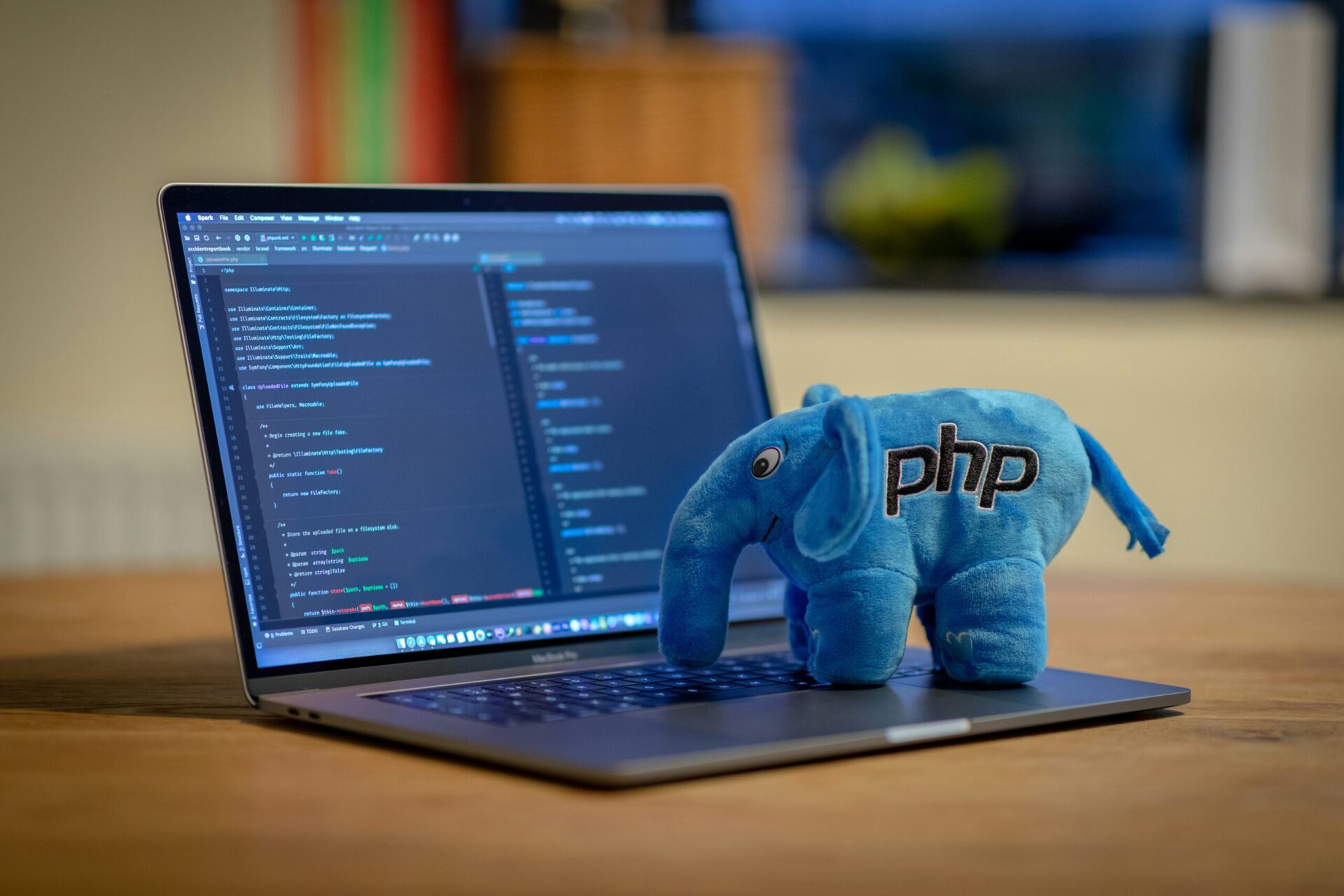
The moment you opened the WordPress dashboard for the first time, PHP was working behind the scenes without you knowing. Every page you see, every article that appears, and every menu that forms, are all results of PHP code running on your server before anything reaches the visitor’s browser. In this article from Zy Yazan Platform, we will learn together that PHP is not a terrifying programming language, but rather a smart assistant living inside your website, and you can give it useful instructions with very few lines of code.

PHP and HTML — The Fundamental Difference
Remember that you write HTML once and it stays exactly as it is: you write “Hello” and “Hello” appears to every visitor at any time. PHP is completely different in its core concept: the code runs on the server first, thinks and decides, then sends ready-made HTML to the browser.
Imagine a smart receptionist at a hotel entrance: they do not say the exact same sentence to every guest. Instead, they look at the clock and say “Good morning”, “Good evening”, or “Welcome back” depending on the situation. HTML is the fixed sign on the wall, and PHP is that smart receptionist.
This is exactly what we will build together as our first exercise.
Where Errors Hide in PHP — Before Any Code
Just as we learned in the JavaScript article to open the Console before writing, in PHP we open a different place. If you make a mistake in PHP code, the error appears on the page itself as red text at the top, or a completely blank white page appears (this is called the “White Screen of Death” among WordPress developers). The immediate solution: open cPanel and look for Error Logs, where you will find the details of every error along with the causing line number.
If you ever face the white screen: do not panic. Open the functions.php file from cPanel, delete the last line you added, and save. In 90% of cases, life will return to the site instantly.
The First Touch — A Greeting That Changes with Time
Let’s start with an independent PHP file to understand the concept before diving into WordPress. Create a file named greeting.php and place it in the public_html folder on your server via FileZilla or the cPanel File Manager:
<!DOCTYPE html>
<html lang="en" dir="ltr">
<head>
  <meta charset="UTF-8">
  <title>Smart Greeting</title>
</head>
<body>

<?php
  // PHP asks the server: what time is it now?
  $hour = (int) date('H');   // A number from 0 to 23

  if ($hour >= 5 && $hour < 12) {
    $greeting = "Good morning";
  } elseif ($hour >= 12 && $hour < 18) {
    $greeting = "Good afternoon";
  } else {
    $greeting = "Good evening";
  }
?>

  <h1><?php echo $greeting; ?> — Welcome to my website</h1>
  <p>Server time now: <?php echo date('H:i'); ?></p>

</body>
</html>
Upload the file and open its link in your browser: https://yoursite.com/greeting.php. You will find a greeting that changes according to the server time. No magic, just PHP asking the server for the time and deciding what to say.
Let’s read the code: <?php means “start executing PHP from here”, and ?> means “PHP ends, return to HTML”. Everything in between runs on the server before anything reaches the visitor. And echo simply means “print this on the page”.
The Second Touch — The Copyright Year Updates Itself
In the footer of every website you find “© 2024” or something similar. Many people forget to update it at the beginning of each year. PHP solves this problem once and for all:
<footer>
  <p>The Yazan Platform © <?php echo date('Y'); ?></p>
</footer>
One line. date('Y') asks the server for the current year and prints it automatically — 2026 this year, 2027 next year, without you having to remember to change anything.
The functions.php File — The Heart of WordPress Customization
Here is where the real value begins for anyone using WordPress. The functions.php file is a PHP file found in every WordPress theme, and it is the place where developers put additional features they want in their site. Think of it as a special instruction book you give to WordPress every time a page loads.
Where do you find it? In the WordPress dashboard: Appearance ← Theme File Editor ← select functions.php. Or via cPanel: public_html/wp-content/themes/your-theme-name/functions.php.
An important warning before editing: Always keep a copy of the file before making any changes. Copy its content and paste it into a text file on your computer. If your site is live and has active visitors, make edits during a quiet time.
First Example: Adding Custom CSS via Code
Instead of editing the theme’s CSS format directly (and losing the edits with every update), developers add custom CSS via functions.php in a way that stays protected:
// Add this at the end of the functions.php file
function my_custom_styles() {
    wp_enqueue_style(
        'my-custom-css',
        get_stylesheet_directory_uri() . '/custom.css'
    );
}
add_action( 'wp_enqueue_scripts', 'my_custom_styles' );
This tells WordPress: “Every time the page loads, add a CSS file named custom.css from the theme folder”. The file remains separate and protected.
Second Example: Hiding the Admin Toolbar from Visitors
WordPress shows a toolbar at the top of the page for logged-in users, and sometimes you want to hide it from non-administrators:
// Hide the toolbar for non-administrators
add_filter( 'show_admin_bar', function( $show ) {
    return current_user_can( 'administrator' ) ? $show : false;
});
Let’s read it: “Modify the decision to show the toolbar. If the user is an administrator, keep it; otherwise, hide it”. Two lines replace an entire plugin.
Third Example: A Greeting Message in the Dashboard
A nice personal touch if you manage a client’s website and want the dashboard to look more welcoming:
function my_dashboard_greeting() {
    $hour = (int) date('H');
    $greeting = ( $hour < 12 ) ? 'Good morning' : 'Good evening';
    echo '<div class="notice notice-info">
            <p>' . $greeting . ' — Welcome to your website dashboard 👋</p>
          </div>';
}
add_action( 'admin_notices', 'my_dashboard_greeting' );
Rules of Working with functions.php
Three rules will save you from most problems:
Rule One: Use a Child Theme: When you update your theme, the functions.php file is replaced with a new version and your modifications are lost. A child theme contains its own functions.php that remains intact with updates. Most plugins that create child themes are free and work with a single click.
Rule Two: Do not delete anything you do not understand: The code in functions.php was originally placed by the theme developer for a reason. Add to the end of the file and do not delete from the top.
Rule Three: Every function must have a unique name: If you add two functions with the exact same name, the site will stop working. Make your function names unique by adding your own prefix — like zy_ or mysite_ at the beginning.
Nobody Memorizes PHP Functions by Heart
As we said in the JavaScript article, and we repeat it here because it is even more urgent in PHP: the official PHP documentation on php.net and the WordPress documentation on developer.wordpress.org are your permanent references. A professional developer searches them dozens of times a day. The goal is to know what you want to do; finding the right function is a detail that comes after that.
PHP is like a smart assistant whose entire capabilities you do not need to know; you just need to know when to ask for help and how to describe what you want.
Conclusion and Next Step
We learned together that PHP is not a strange and difficult language, but rather the engine that runs WordPress from day one, and we have already dealt with it without realizing. We added three live touches: a greeting that changes with time, a copyright year that updates itself, and functions that customize WordPress without extra plugins. These small touches are what separate a ready-made theme site from a site that carries its owner’s fingerprint.
Recommended Next Step:
PHP gave us live touches on existing sites, but what if you want to build a complete dynamic website from scratch using a more flexible and modern language? In the next article, we move to Python and the Flask framework: Dynamic Websites: Using Python to Build Complex Sites. And if Python is completely new to you, we have an integrated series that starts from scratch: Why Every Freelancer Should Learn Python in 2026?
References and Sources:
- Official PHP Documentation: PHP Manual — php.net
- WordPress Developer Reference: WordPress Developer Reference
- WordPress Child Themes Guide: Child Themes — WordPress.org
— Web Design Guide —
Previous Article: 10- The Independent Site
Current Article: 11- PHP for Everyone
Next Article: 12- Dynamic Websites
Similar Series: Blogging Guide | Multimodal Blogging Workshop | SEO Guide
Zy Yazan Platform © 2026
Freelancer Workshops
Web Design Guide — 14 Articles






Series Web Design Guide — 14 Articles | ZYYAZAN Platform © 2026