The Interactive Interface: Adding Life and Engagement to Your Pages with JavaScript

Learn JavaScript starting with your first visual exercise: a button to hide and show a menu, the DOM family tree, and how to read error messages before writing a single line of code.
Word count: ~2000 · Reading time: 10 mins
The Interactive Frontend
When a page stops being a silent canvas and starts responding to its readers
Note to reader: This article stands on its own, and you can start right here. However, the practical exercises build upon HTML structure and CSS styling. If you are not yet familiar with them, we highly recommend checking out our two previous guides: The Structural Language: HTML Basics and Visual Styling: CSS for Beginners.
So far, we have covered the skeleton of a webpage using HTML, the paint and decor with CSS, and responsive layouts that adapt to mobile screens. Yet, the page remains static. You click a button, and nothing happens. You type into a field, and there is no response. In this article, we will add the third and final layer: JavaScript—the language that gives your webpage a memory and the ability to react.
Before Any Code — Where Do Bugs Hide?
Beginners often write their first line of JavaScript, see no result, and immediately assume the issue lies with the language or their own understanding. More often than not, the culprit is a single missing character or a misspelled name. The error message is actually right there, but it is hiding in a place where most people forget to look.
Before we write a single line, let us open the environment where these error messages live: Developer Tools.
How to open them:
In any browser—Chrome, Firefox, or Edge—press F12, or right-click anywhere on the page and select “Inspect”. A panel will appear at the side or bottom of your browser window. Navigate to the Console tab.
This panel is your direct line of communication with the browser. When an error occurs in your code, a red message will pop up here, telling you exactly which file the error is in and on which line. Later on, we will intentionally introduce a small bug to see this message in action and learn how to decode it.
Professional developers keep the Console open constantly while writing code. This is not because they make mistakes all the time, but because they know errors are a natural part of development, and reading them instantly is much faster than guessing blindly.
JavaScript — The Language That Evolved Without Breaking
When searching for JavaScript tutorials, you will likely encounter two vastly different writing styles: the older syntax using var, and the modern syntax using let and const. Both versions work, but they represent different eras in the language’s evolution. We will focus directly on the modern approach. This way, if you run into legacy code later on, you will instantly recognize where it comes from. That is all you need to know about the debate for now.
The Family Tree — What is the DOM?
When a browser loads your HTML file, it does not read it as plain text. It constructs a family tree in its memory: the <html> element acts as the great-grandparent, containing <head> and <body> as its children, which in turn contain other elements as descendants. This tree structure is called the DOM, or Document Object Model.
JavaScript is the tool that allows us to target any member of this family tree and modify them on the fly. You can change their color, hide them, insert new text, or delete them entirely—all happening instantly in front of the user without reloading the page.
For example, if you have <h1 id="title">Hello</h1> in your HTML, JavaScript accesses it like this:
document.getElementById("title")
Let’s read the code word by word: “From the current document, fetch the element whose identifier (id) is title.” With this single line, you gain the power to alter anything inside that element.
First Practical Exercise — A Toggle Menu Button
Instead of printing a generic message to the console, let us build something highly visual right away: a button that displays a menu when clicked and hides it when clicked again. This is exactly how mobile navigation menus work on almost every website you visit.
Create a file named toggle-menu.html and paste the following code:
<!DOCTYPE html>
<html lang="en" dir="ltr">
<head>
  <meta charset="UTF-8">
  <meta name="viewport" content="width=device-width, initial-scale=1.0">
  <title>Menu Button</title>
  <style>
    body { font-family: Arial, sans-serif; padding: 30px; }

    #my-menu {
      background: #f4f4f4;
      border-left: 4px solid #c0392b;
      padding: 15px 20px;
      margin-top: 10px;
      display: none;        /* Hidden by default */
    }

    #my-menu a {
      display: block;
      padding: 6px 0;
      color: #c0392b;
      text-decoration: none;
    }

    button {
      background: #c0392b;
      color: white;
      border: none;
      padding: 10px 20px;
      font-size: 1em;
      border-radius: 5px;
      cursor: pointer;
    }
  & style>
</head>
<body>

  <button id="toggle-btn">Menu ☰</button>

  <nav id="my-menu">
    <a href="#">Home</a>
    <a href="#">Services</a>
    <a href="#">Portfolio</a>
    <a href="#">Contact</a>
  </nav>

  <script>
    // ① Fetch the button and the menu from the DOM family tree
    const btn  = document.getElementById("toggle-btn");
    const menu = document.getElementById("my-menu");

    // ② When the button is clicked, execute this function
    btn.addEventListener("click", function() {

      // ③ If the menu is hidden — show it
      if (menu.style.display === "none" || menu.style.display === "") {
        menu.style.display = "block";
        btn.textContent    = "Close ✕";

      // ④ If it is visible — hide it
      } else {
        menu.style.display = "none";
        btn.textContent    = "Menu ☰";
      }

    });
  </script>

</body>
</html>
Open this file in your browser and click the button. The menu will slide into view and disappear, and the button text itself changes with every single click.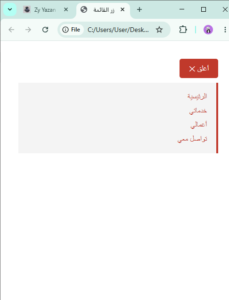
Let’s read the code word by word to break down exactly what is happening:
Lines 1 and 2: We extract the button and the menu elements from the family tree using their unique IDs. The keyword const declares a variable that will not be reassigned. We use it here because we are not changing the identity of the elements themselves, only modifying their internal properties.
Line 3: addEventListener tells the browser to listen for a specific trigger on this element. The trigger here is a "click", and the attached function outlines exactly what should run when that click happens. This specific formula—((listen for a trigger, then run an action))—is the very heartbeat of JavaScript development.
Lines 4 and 5: This is our conditional if / else logic. The browser evaluates the current visibility state of the menu on every single click and dynamically decides which block of code to run.
Testing an Intentional Error
Now open the file, bring up your Developer Tools (F12 → Console), and deliberately change toggle-btn in your script to toggle-btt. Save your file and refresh the page. You will see a red error message in the Console reading something like “Cannot read properties of null”. This tells you JavaScript looked for an element with that specific typo and found nothing. Revert the name back to its correct spelling, save, and the error will vanish.
Congratulations! You have just read and diagnosed your very first programming error.
Core Concepts in Human Terms
The exercise we just completed touches on almost all the fundamental building blocks you will use in daily JavaScript development. Let us define them clearly:
Variables — Storage Drawers
A variable functions like a labeled storage drawer where you save data to access later. Use const for drawers whose contents stay fixed, and let for values that will change over time:
const siteName = "Zyyazan Platform";   // Will not change
let   visitCount = 0;                  // Will increment with each visit
Functions — Recipes
A function is a packaged bundle of instructions given a specific name so you can run it whenever you need to. Think of it like a cooking recipe: you write it down once, and you can reuse it ten times over:
function greetVisitor(name) {
  return "Hello " + name + ", welcome back!";
}

greetVisitor("Ahmed");   // Executes the recipe
Events — Triggers
JavaScript does not run in a vacuum; it executes in response to user actions. These actions are called events. Here are the most common triggers you will use:
| Event | When It Fires | Practical Example |
|---|---|---|
click |
A mouse click or screen tap | Opening menus, submitting forms |
input |
Typing inside a text field | Live search filters, character counters |
submit |
Submitting a form | Form data validation before sending |
scroll |
Scrolling up or down the page | Revealing a “Back to Top” button |
Second Exercise — A Live Character Counter
Let us try another quick exercise that provides immediate visual feedback: a text field that tracks and displays your character count in real time, just like you see on social platforms or registration forms. Add this code to a new file or right below your previous project:
<textarea id="my-text" rows="4"
  placeholder="Type here..."
  style="width:100%; padding:10px; font-size:1em;"></textarea>

<p>Character Count: <strong id="char-count">0</strong></p>

<script>
  const textArea  = document.getElementById("my-text");
  const counter   = document.getElementById("char-count");

  textArea.addEventListener("input", function() {
    counter.textContent = textArea.value.length;
  });
</script>
Just three lines of JavaScript yield a fully functioning feature. Notice how it follows the exact same pattern: capture the elements from the tree, listen for a trigger, and update the UI.
Nobody Memorizes Everything — And For Good Reason
We emphasized this in our previous guides, but it becomes critical when dealing with JavaScript: the language contains hundreds of built-in functions and APIs, and even veteran developers do not memorize them all. The goal is never memorization. Your objective is simply to know what to ask the browser to do, and how to describe your problem clearly so you can find the exact answer via MDN Web Docs or AI assistants.
Once you know that your intent is to “listen for a click event and change an element’s content,” you understand JavaScript. Looking up the precise method name is just a minor detail that follows.

JavaScript and WordPress — What Actually Matters to You
If you run a WordPress site, JavaScript powers almost every plugin you install and theme you select. Understanding how it operates helps you in three practical ways: First, you will understand exactly why certain heavy plugins slow down your page load speeds (because they load massive script files). Second, you can drop small custom code snippets into your theme’s custom settings without needing a separate plugin. Third, checking the Console for errors allows you to instantly diagnose plugin conflicts on your own.
Summary and Next Steps
Today, we demystified JavaScript and demonstrated that it is not an overwhelming riddle. It is simply a structured conversation with the browser built on three pillars: select an element from the family tree, listen for an event trigger, and execute a change. We also learned that the Console is your best diagnostic asset, instantly pointing you to the exact line where a bug occurs. Now your website has structure, style, and behavior. All that is left is to make sure people can find it.
Recommended Next Step:
We have built a fully functional site, but it is still localized to your computer. In our next article, we will launch it out to the world: Announcing Website Existence: SEO and Indexing Tools, where we will explore how Google finds your content and how to serve your site up on a silver platter for search engines.
References and Sources:
- MDN Web Docs JavaScript Guide: JavaScript Guide — MDN
- MDN DOM Event Reference: Event Reference — MDN
- MDN addEventListener Documentation: addEventListener — MDN
— Web Design Guide Series —
Previous Article: 6- Mobile-First Environments
Current Article: 7- The Interactive Interface
Next Article: 8- Announcing Website Existence
Related Series: Blogging Guide | Multimodal Blogging Workshop | SEO Guide
Zy Yazan Platform © 2026
Freelancer Workshops
Web Design Guide — 14 Articles











Series Web Design Guide — 14 Articles | ZYYAZAN Platform © 2026